Installation
Installation is automatic. Select Open when downloading a ".msi" file from this website,
or double-click it after downloading.
(Any method that causes the ".msi"
file to be opened by Windows Installer will work.) Administrator
privileges are required.
After installing, programs
will appear in the Bridge Club Utilities folder of the Start menu.
Getting Started
 Whenever you start
BridgeComposer from the Bridge Club Utilities folder of the Start menu, a window will open containing
an empty, untitled document (see image at left).
From this window, you may use menu commands: use "Board→New" to enter a new
board; use "File→Open" to open an existing bridge file (PBN, LIN, BRI, DUP, or DLM
format); use "Tools→Generate Random Boards" to generate random boards; use
"Help→Help Topics" for complete documentation. See also the
Tutorials page and the Gallery page on this website for additional
information.
Whenever you start
BridgeComposer from the Bridge Club Utilities folder of the Start menu, a window will open containing
an empty, untitled document (see image at left).
From this window, you may use menu commands: use "Board→New" to enter a new
board; use "File→Open" to open an existing bridge file (PBN, LIN, BRI, DUP, or DLM
format); use "Tools→Generate Random Boards" to generate random boards; use
"Help→Help Topics" for complete documentation. See also the
Tutorials page and the Gallery page on this website for additional
information.
Installation Notes
- Administrator privileges are required to install and uninstall.
- Your anti-virus protection should be temporarily disabled during installation.
Several anti-virus vendors recently (as of November, 2016) have added
a new "heuristic" virus
detection that reports a false positive during BridgeComposer installation. This causes
the installation to fail. BridgeComposer does not in fact contain any virus or
other malware.
- Download or install difficulties? Try
BCInstaller.
- Run BCInstaller and choose the "BC Website" tab.
- Select the current release of BridgeComposer.
- Click the "Download & Install" button.
- If problems persist, you may send the BCInstaller log file to
support@bridgecomposer.com.
- CPU Compatibility: If you have a very old computer, see the note at the bottom of
the Archive page.
- The programs on this website are Windows 32-bit applications that run fine on both
32-bit and 64-bit Windows (but not Windows RT). BridgeComposer includes both 32-bit and 64-bit
versions of its PBN search filter and the correct version for your OS is
automatically installed.
As of August, 2020, a complete 64-bit build of BridgeComposer is also available.
This build is functionally identical to the 32-bit build, but may be faster when performing
some operations. Of course, this build can only be installed on 64-bit computers.
- These programs are distributed as ".msi" (Windows Installer)
files. You must have the Windows Installer already installed on your
computer in order to install the files downloaded from this website.
Most computers will have Windows Installer already installed as a
result of previous software installs.
In any event, the current version of Windows Installer is available for download from
www.microsoft.com.
- To uninstall, choose any one of the following
methods:
- Use the BridgeComposer Help→License menu command and click the Uninstall button.
-
Or, use the Windows Programs and Features control panel
(known as Add/Remove Programs on Windows XP).
- Or, on Windows 10 or
later, use
Start → Settings → Apps → Apps & features.
-
Or, use BCInstaller.
Upgrade and Uninstall Problems
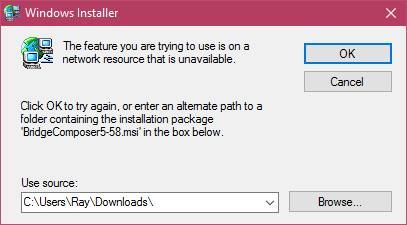
If you have difficulty upgrading to a new version of BridgeComposer, or with uninstalling,
then your current
installation may be damaged.
For example, Windows Installer files pertaining to your current
BridgeComposer installation may have been quarantined by your anti-virus
(due to an erroneous false positive).
If you receive the above message ("The feature you are trying to use is
on a network resource that is unavailable"), it is looking for the installation
package for your current version (5-58 as shown in this example). Note this
version and click "Cancel".
We suggest you proceed as follows:
We recommend that you temporarily disable your anti-virus during all
install, upgrade, uninstall, and repair operations.
- Disable your anti-virus.
- Download the .msi file for your current version (from the
Archive page or using
BCInstaller "BC Website" tab).
- Run this
.msi and you will be asked whether to repair or remove: choose "Repair".
- Retry the upgrade or uninstall.
- Reenable your anti-virus.
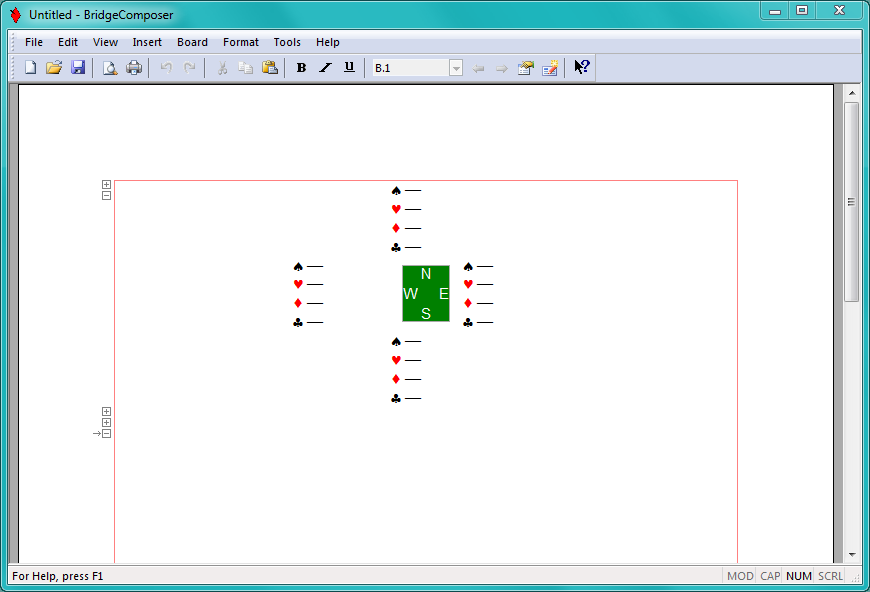 Whenever you start
BridgeComposer from the Bridge Club Utilities folder of the Start menu, a window will open containing
an empty, untitled document (see image at left).
From this window, you may use menu commands: use "Board→New" to enter a new
board; use "File→Open" to open an existing bridge file (PBN, LIN, BRI, DUP, or DLM
format); use "Tools→Generate Random Boards" to generate random boards; use
"Help→Help Topics" for complete documentation. See also the
Tutorials page and the Gallery page on this website for additional
information.
Whenever you start
BridgeComposer from the Bridge Club Utilities folder of the Start menu, a window will open containing
an empty, untitled document (see image at left).
From this window, you may use menu commands: use "Board→New" to enter a new
board; use "File→Open" to open an existing bridge file (PBN, LIN, BRI, DUP, or DLM
format); use "Tools→Generate Random Boards" to generate random boards; use
"Help→Help Topics" for complete documentation. See also the
Tutorials page and the Gallery page on this website for additional
information. BridgeComposer